
Windows 365 User Guide

Gonzalo Sánchez de Eguilior | 31 de July de 2024 | 0 comments
Table of Contents
This is an article we are especially excited to write, as it answers a question we are frequently asked: The Windows 365 user guide.

Windows 365 User Guide Manual
Next, we will explain the main methods available to connect to our Cloud PC.
How to Connect to Our Cloud PC
Web Version
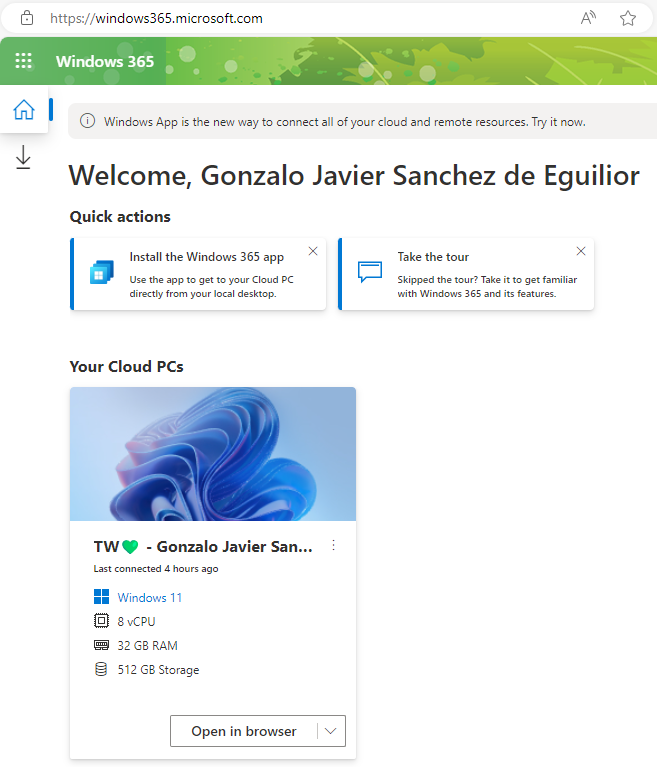
From any compatible modern browser (OS: Windows, macOS, ChromeOS, Linux, or LG webOS 23; compatible browsers: Microsoft Edge, Google Chrome, Safari, Mozilla Firefox, etc.) we can access the web version at windows365.microsoft.com, where we will find the direct link to connect to our Cloud PC. Additionally, we will have other options such as the ability to restart the node in case any issue is detected.
Windows App
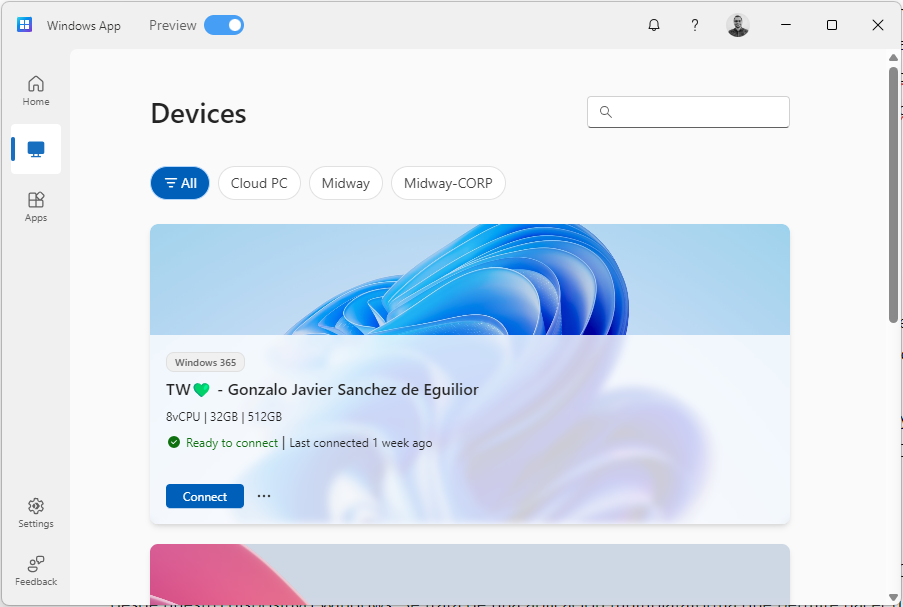
This application for Windows 10/11 devices, which is still in preview, is Microsoft’s bet for connecting to the future of Cloud PCs. From this application, we highlight how easy it is to configure accounts from different tenants, its support for multiple monitors and resolutions, the ability to use local devices (such as the webcam or printer), and the various optimizations it offers for using Microsoft Teams from our Cloud PC.
Remote Desktop
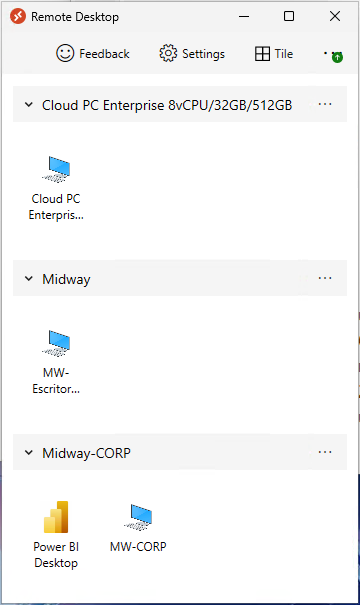
With this program, we can remotely connect to multiple PCs, including our Cloud PC, from our Windows device. It is a cross-platform application (x64, x86, and ARM64) that allows access to our Cloud PC, although with fewer integrations and features compared to the Windows application.
Extra: LG webOS 23
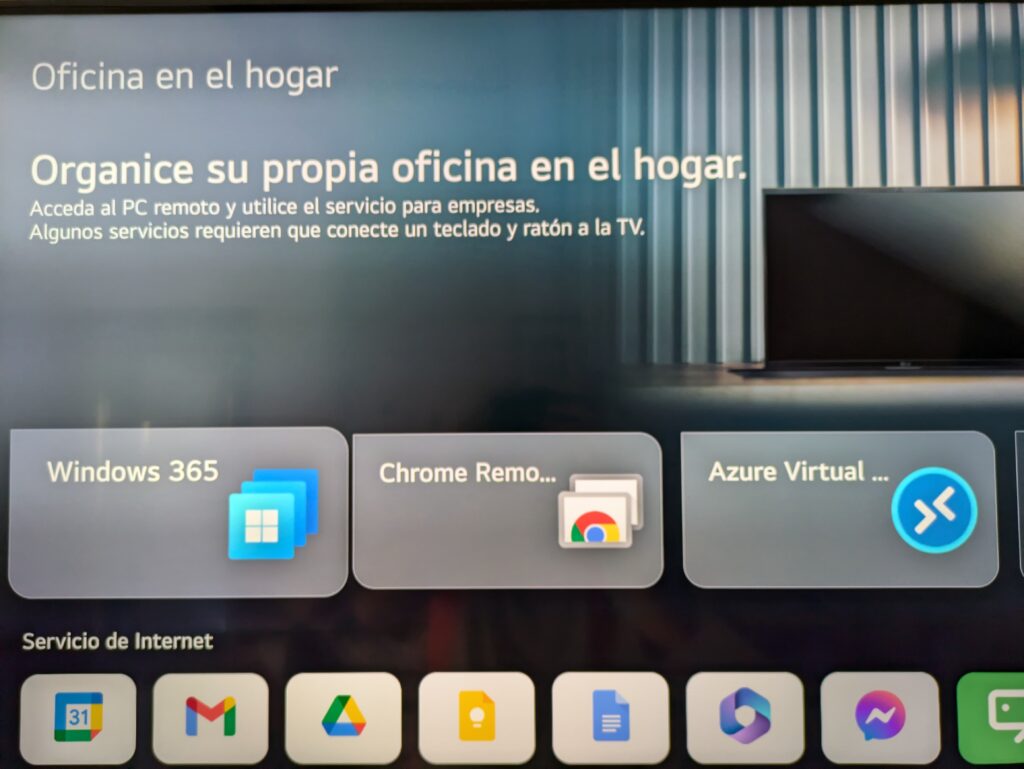
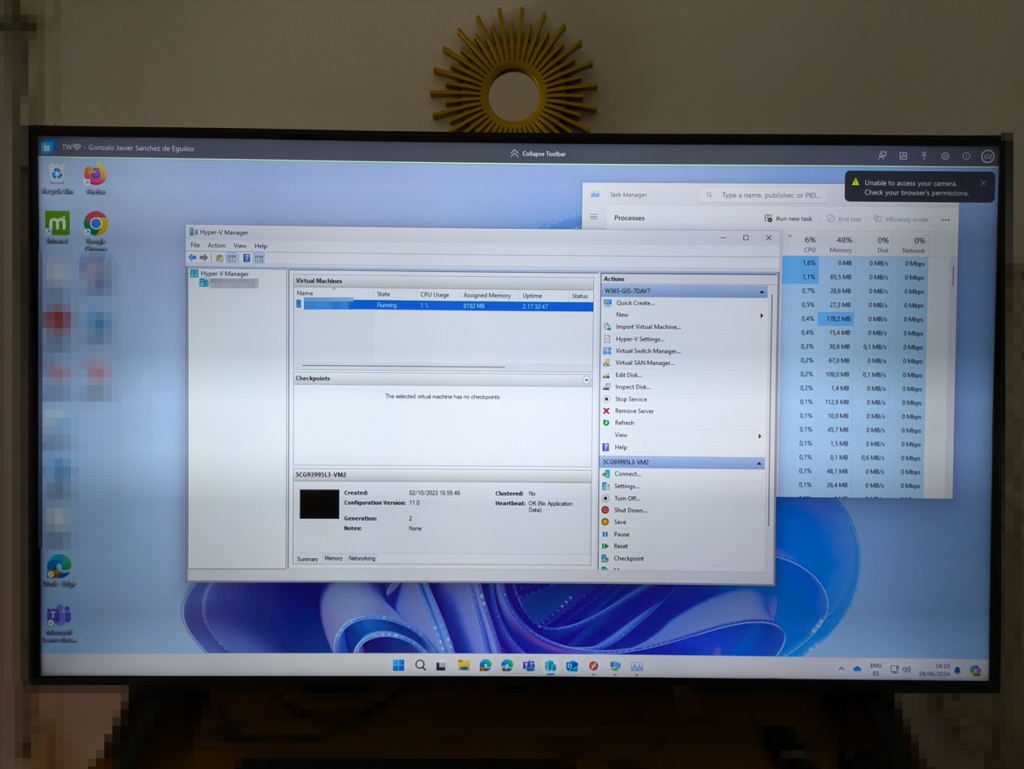
Lastly, we wanted to mention that LG also offers a web client specially adapted for Windows 365 on all its televisions running the LG webOS23 operating system. Although it has certain limitations (for example, file transfer or clipboard sharing is not possible), it is further proof that it increasingly matters less which device we use to connect to our work desktop.
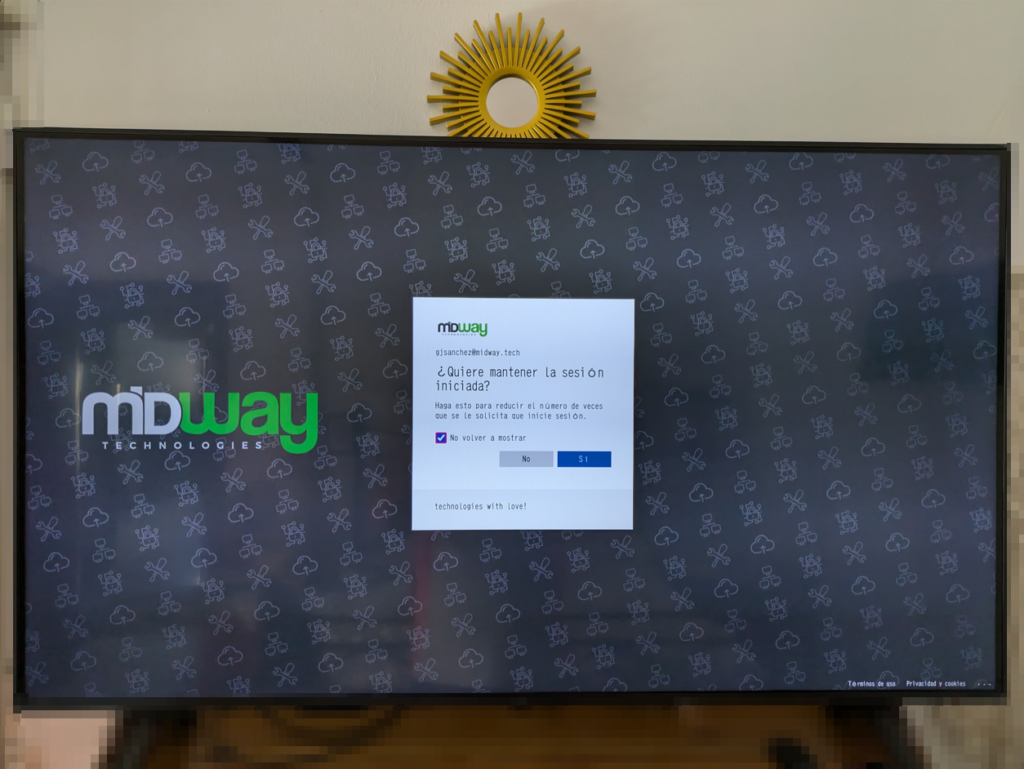
You only need to connect a keyboard and mouse to the TV (you can plug the dongle into the USB port or use a Bluetooth model) to work comfortably on your cloud desktop.
Real Example Using Windows App
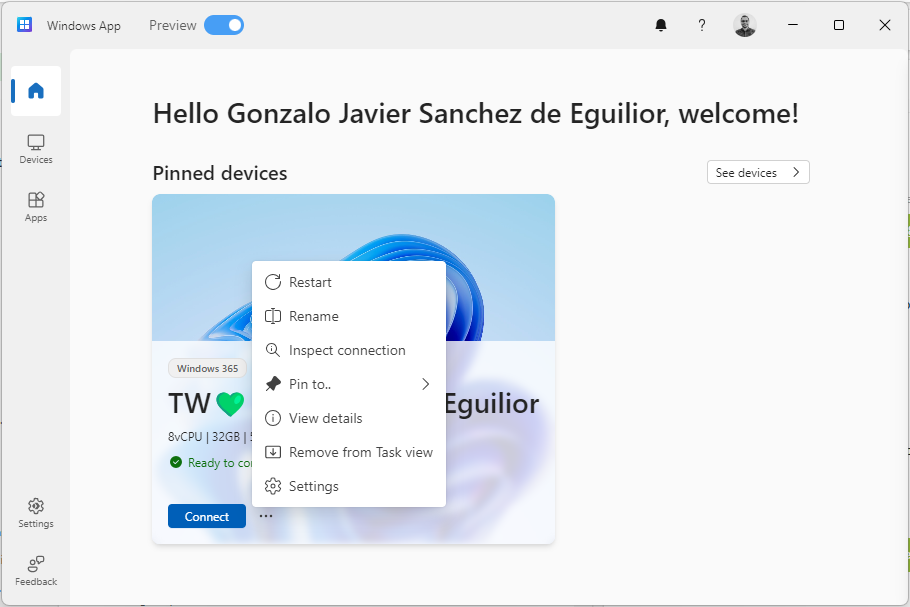
Among the different options available, we will focus on how to work with Windows App. This application receives updates quite frequently, which demonstrates Microsoft’s effort to turn it into the main access application for Windows 365. The initial setup is as simple as signing in with our Microsoft account and completing the two‑factor authentication. All Windows 365 and AVD resources associated with our account will be published automatically.
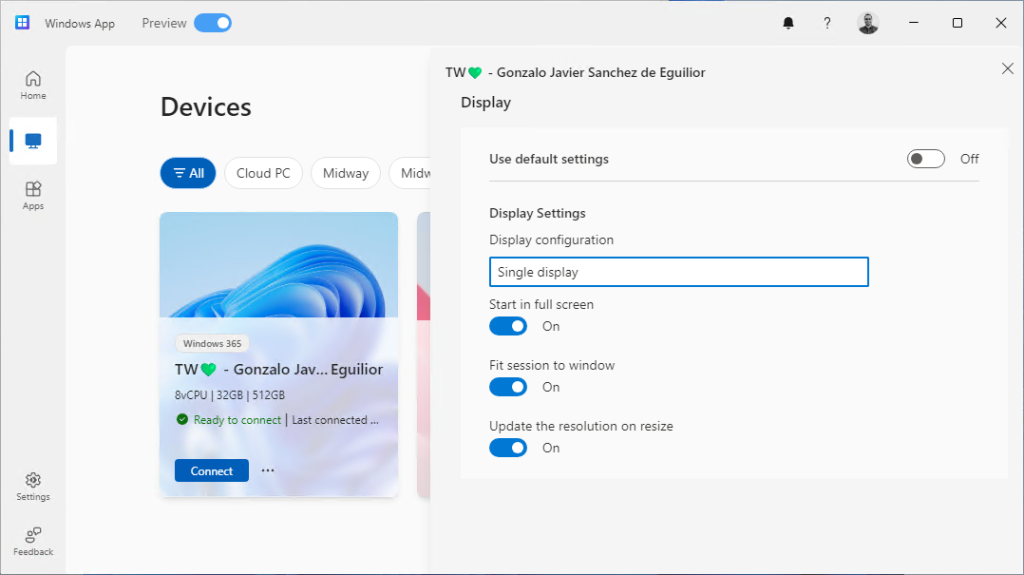
If we click the connect button, we will directly access our Cloud PC. If we click on the three dots instead, a menu with different options will unfold, where we can rename the connection title, check the status of our network connection to the Cloud PC, or configure how many monitors we want our Cloud PC desktop to be displayed on.
Did you find this interesting? Share it!


Hi! I'm Gonzalo Sánchez :)
I’m an expert in Microsoft’s Modern Workplace area, and I love working with new technologies.
Learn more about me

